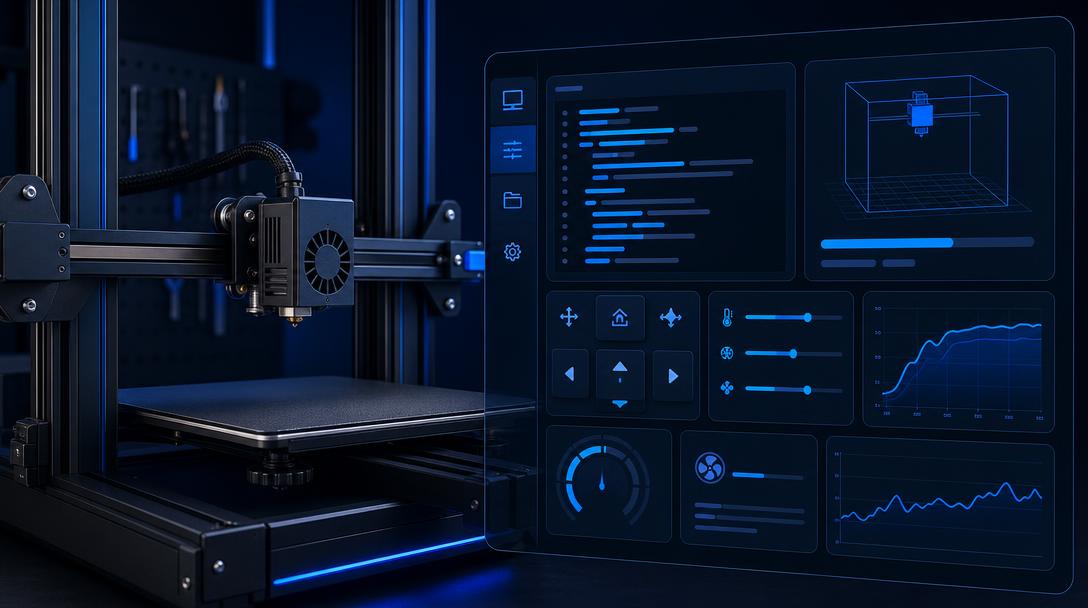

Klipper Macros: One-Click Heating and Parking with G-Code
Klipper macro lets you link frequently used G-code commands to a single button or short command. You can automate tasks such as heating the nozzle and bed, moving the part to a safe position at the end of a print, changing filament, or moving the printer to a cleaning position.
What is a Klipper macro used for?
Macros defined in the Klipper configuration group multiple commands under a meaningful name. This means you do not have to enter the same temperature values manually before every print or write long lines of G-code in the terminal. Macros are especially practical for those who produce regularly, use different materials, and want to standardize their print-start workflow.
The most commonly used macros include pre-print preparation, post-print cooling, nozzle cleaning, bed heating, and safe parking movements. However, when writing a macro, you need to consider your printer’s mechanical limits and available sensors.
How should the PRINT_START macro be planned?
A good PRINT_START macro performs the necessary preparations in the same order before starting a print. An example workflow could be set up as follows:
- Take the bed and nozzle target temperatures as parameters.
- Move the nozzle to a safe waiting position while the bed is heating.
- Perform homing if necessary.
- Wait for the nozzle temperature to reach the target value.
- Apply a nozzle cleaning line or a short purge movement.
- Check the coordinate system before moving to the model’s first layer.
Using parameters is a more flexible solution than hard-coding temperatures inside the macro. This allows you to call the same macro with different values for PLA, PETG, or materials that require higher temperatures. You only need to call the macro in the start G-code section of your slicer; however, always check the workflow before removing the existing heating and homing commands.
Safety in heating and parking macros
Although heating commands may seem simple, running them in the wrong order can extend print time or cause unnecessary energy consumption. Starting the print before the bed reaches the target temperature can impair first-layer adhesion. Trying to drive filament at high speed while the nozzle is cold can also increase the load on the extruder.
- Parking position: Make sure the nozzle will not hit the edge of the bed, clips, or the printer frame.
- Coordinates: Set the X, Y, and Z limits according to your printer’s actual build volume.
- Wait commands: Use commands that wait for the target temperature to be reached in an order appropriate for the material.
- Fans and motors: Before turning off the fans and motors at the end of a print, check that the part can be removed safely.
- Pausing: Raise the toolhead to a safe height during filament changes or situations that require inspection.
PRINT_END and custom macros
The PRINT_END macro can move the nozzle away from the part when the print is complete, lower the bed temperature, and park the print head in an accessible position. At this stage, it is better to wait for the bed and model to cool to a safe temperature rather than touching the part immediately.
Depending on your needs, you can also create separate macros such as NOZZLE_CLEAN, FILAMENT_LOAD, FILAMENT_UNLOAD, or BED_MESH_CALIBRATE. Test each macro first while the printer is idle, at low speed, and under observation. If a command causes unexpected movement, stop the system and review the printer.cfg file again.
Klipper macros reduce repetitive tasks while allowing you to personalize how your printer operates. To see the differences between Klipper and Marlin and determine which workflow suits you, take a look at our Klipper and Marlin comparison guide. If you would like to have an FDM part or accessory compatible with your printer made, you can find information on our 3D printing service page and explore our printing materials for material selection.


 Türkçe
 العربية
 Русский
 فارسی
فارسی Deutsch