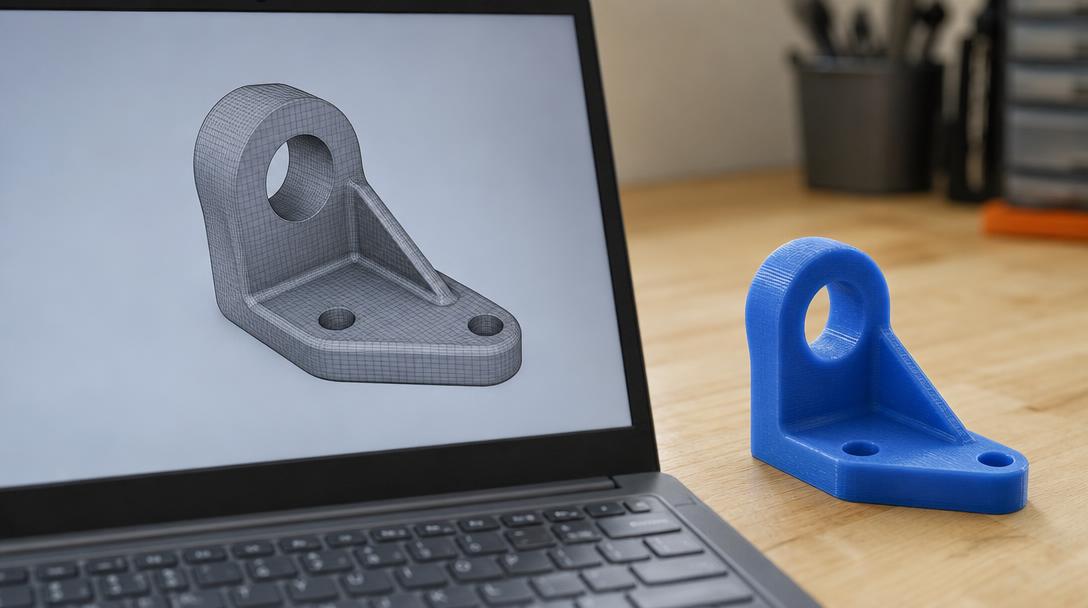

How do you open an STL file?
The quickest way to open an STL is to upload it to a free online viewer in your browser; no installation is needed. Windows may include 3D Viewer depending on the version and installed apps, while Preview or Quick Look on Mac may display some STL files. For editing or preparing a print, use Blender, FreeCAD, or a slicer.
Windows
Double-click the file first. If an app is associated with STL files, it should open; otherwise Windows may let you choose an app. 3D Viewer may be built in or available through the Microsoft Store, depending on your Windows version and installed software, so do not assume it is present on every PC. If it is unavailable, use a desktop program or a browser viewer. A viewer is enough to rotate and zoom; editing, measuring, and print preparation need more capable software. Check that the file really ends in .stl, especially if file extensions are hidden.
macOS and phones
On a Mac, select the file in Finder and press the space bar to try Quick Look. Preview support depends on the macOS version and file; not every STL will open this way. If it does not work, try a free 3D application or online viewer. On Android and iOS, use a general 3D model viewer app or an online tool in a mobile browser. Check STL support, file-size limits, and whether the file is uploaded to a server. Large models may be slow on phones.
Free desktop programs and slicers
Blender is useful for detailed inspection and editing; FreeCAD suits technical modeling and dimension-based workflows; MeshLab helps inspect mesh geometry. Their interfaces can be more complex than necessary for simple viewing. PrusaSlicer, Cura, and OrcaSlicer are slicers: they let you place, scale, and slice a model for a print preview. They prepare a model for production rather than serving as general-purpose editing tools. Check current operating-system compatibility on each project’s official download page.
| Program | Platform | Free? | Best for |
|---|---|---|---|
| 3D Viewer | Windows | Yes; availability varies | Quick viewing |
| Blender, FreeCAD, MeshLab | Windows, macOS, Linux | Yes | Inspection and editing |
| PrusaSlicer, Cura, OrcaSlicer | Desktop | Yes | Slicing and print preview |
| Online STL viewer | Devices with a browser | Free options available | Viewing without installation |
Online viewing and common problems
For a no-install option, use the free online STL viewer and select your file. Upload time depends on file size and connection. If the model appears blank or will not rotate, refresh the page, try a smaller file, or switch to desktop software. Read the privacy policy before uploading confidential or commercial designs: some services transfer files to their servers. Use local software if you cannot verify how a service handles uploads.
A file may fail because it is large, incompletely downloaded, or contains damaged STL data. Try another viewer and confirm the download completed. Holes, missing surfaces, or slicer errors may indicate a faulty, non-manifold mesh; see the STL repair guide. A model that looks fine can still import at the wrong size. STL often does not specify units, so a millimeter/inch mismatch can make a model 25.4 times too large or small. Check its dimensions before printing. Learn about other formats in the 3D file format guide.
If you plan to have it printed
You do not need to open the file separately just to request a print. Upload the STL directly to 3D print price calculation to see a 3D preview and estimates for grams, print time, and price based on actual slicing. Results depend on the model and settings, so check scale and orientation. Prices exclude VAT. If you do not have an STL, read I do not have an STL file for possible next steps.
Frequently asked questions
What is the easiest free way to open an STL?
A browser-based free viewer is convenient when you do not want to install software. Check upload privacy for sensitive files; use desktop software for offline work.
Can I open an STL like a PDF or image?
No. STL contains 3D surface geometry, so you need a 3D viewer, modeling program, or slicer rather than a text or image viewer.
Why does my STL open but look tiny?
The file may not define units, causing millimeters and inches to be interpreted differently. Check import units and model dimensions, then set the correct scale.




 Türkçe
 العربية
 Русский
 فارسی
فارسی Deutsch