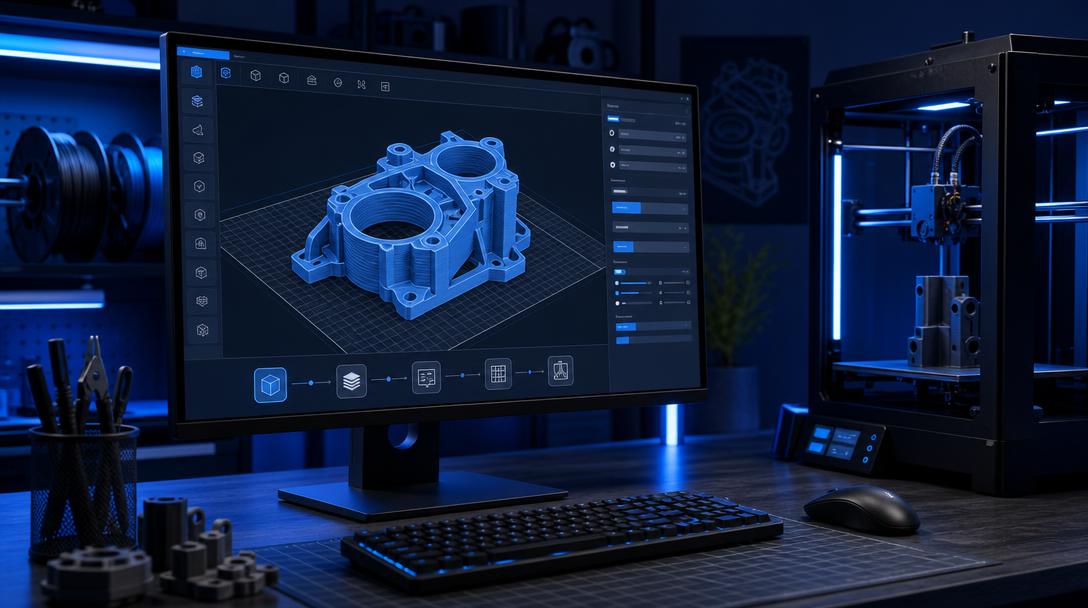

Cura Plugins: 7 Essential Marketplace Plugins to Boost Efficiency
Cura plugins are one of the practical ways to speed up 3D-printing preparation without changing your basic slicing settings. With the right plugins, you can check faulty STL files, reduce the size of G-code files, inspect models before printing and manage your printer remotely. However, instead of installing every plugin, it is healthier to choose the ones that genuinely support your workflow.
How should Cura plugins be chosen?
Before installing a plugin, clearly define the problem it is intended to solve. Model repair, file optimization, remote control and print analysis are different needs. Installing too many plugins can make the Cura interface more complicated or lead to compatibility issues when updating to newer versions.
- Problem-focused selection: The plugin should make a specific, recurring task easier.
- Up-to-date: Plugins that have not been updated for a long time may cause problems with newer Cura versions.
- File security: Install tools that access your G-Code and model files only from trusted developers.
- Testing: Use a new plugin on a small test print rather than directly on an important order.
The plugins that are most useful in your workflow
1. Mesh Tools
Mesh Tools is used to check for errors in STL files and determine whether a model is ready for printing. Reversed surfaces, open edges or faulty mesh structures can sometimes be automatically corrected by the slicer; however, automatic repair should not be assumed to produce perfect results every time. Especially with snap-fit parts, screw holes or models requiring dimensional accuracy, check the geometry again after repairing it.
2. Arc Welder
Arc Welder aims to reduce the size of G-Code files and create more consistent movements on curved surfaces by converting numerous small straight-line commands into arc movements. It can be useful for rounded bodies, cylindrical lids and curved decorative models. Nevertheless, do not enable it without checking your printer’s firmware compatibility.
3. OctoPrint Connection
For users of OctoPrint running on a Raspberry Pi, this plugin makes it easier to send files and start prints directly from Cura. Managing a print without being beside the printer can save time, especially for users testing a large number of prototypes. OctoPrint-side settings must also be configured correctly for features such as remote camera access and temperature monitoring.
4. Calibration Shapes
Plugins of this type make it easier to prepare temperature towers, retraction tests, bridge tests and dimensional-check models directly in Cura. Since every material and printer combination does not use the same settings, proceeding with test models is more reliable than changing values at random. If you are experiencing stringing or first-layer problems, small calibration prints can save time and filament.
5. Tabanti and similar model analysis tools
Analysis tools that examine a model’s print time, estimated filament consumption and layer structure before printing can help with production planning. When evaluating the cost of a part, you should consider not only the filament weight in grams, but also the amount of support material, print time, part orientation and the risk of a failed print. You can calculate the instant 3D-printing price to see an approximate figure before placing an order.
Checklist before installing a plugin
When installing a new tool, first export and back up your current Cura profile. Then test the plugin on its own and compare the same model using the previous settings. Note whether there is any significant change in print time, filament consumption, surface quality or dimensional accuracy. You can also consult the What is a slicer and what does it do? guide to better understand slicer settings.
When chosen correctly, Cura plugins simplify many steps, from model checking to remote print management. However, a plugin cannot replace a flawed design or an incorrect material choice. If you need support with the model, material or print settings for a part to be produced with FDM, you can explore the 3D-printing service options.


 Türkçe
 العربية
 Русский
 فارسی
فارسی Deutsch