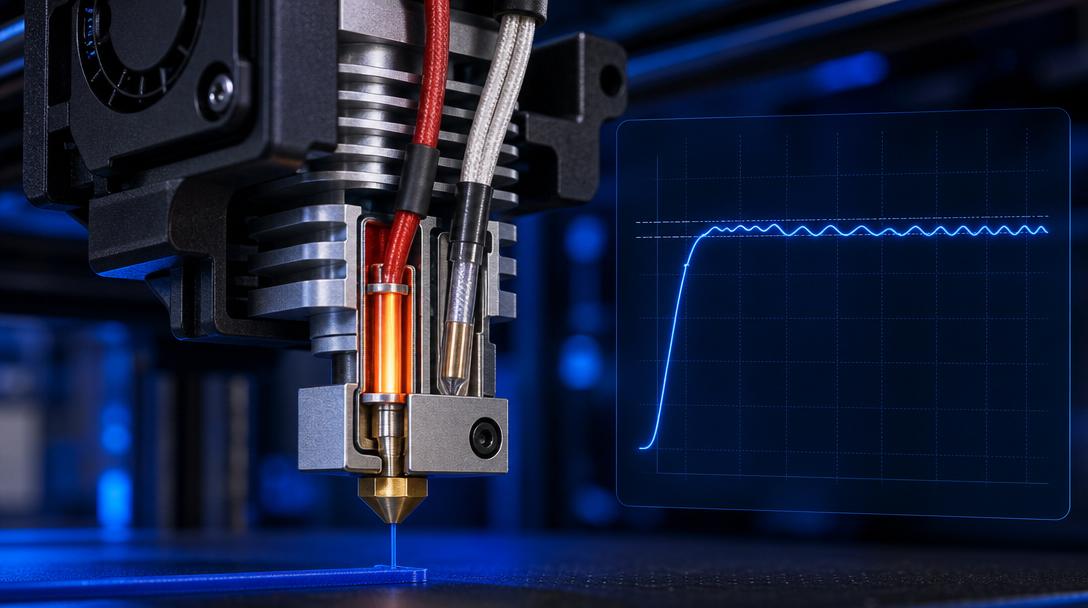

PID Tuning: Zeroing Hotend Temperature Fluctuations
If your 3D printer’s nozzle temperature fluctuates by a degree or two during printing, or you’re even encountering thermal runaway errors, the culprit is most likely your PID settings being out of tune. PID tuning is the process of recalibrating the control loop that keeps your hotend and bed temperature stable to millisecond precision. In this article, we explain what PID is, why it drifts over time, and how you can fix it with a single command, step by step.
What Is PID and Why Does It Matter?
PID (Proportional-Integral-Derivative) is a three-term algorithm used in industrial control systems to maintain a steady temperature. In 3D printers, both the hotend and the heated bed rely on this algorithm. The PID coefficients (Kp, Ki, Kd) are optimized for your printer’s current hotend, fan, heatsink, and ambient temperature. However, these coefficients lose their validity under the following circumstances:
- Hotend or heater cartridge replacement — a cartridge with different wattage requires different PID values.
- Cooling fan upgrade — a stronger fan cools the hotend faster, and the PID won’t adapt on its own.
- Enclosure or ambient changes — switching to an enclosed chamber or a significant shift in room temperature can throw off PID balance.
- Alternative firmware (Klipper, RepRap) — different firmwares reset the default PID values.
How to Perform PID Tuning
The process is remarkably simple and takes just a few minutes on most firmwares. Follow these steps on a Marlin-based printer:
1. Hotend PID Autotune
Start by sending the following command from your printer console (e.g., Pronterface, OctoPrint Terminal, or directly from the LCD screen):M303 E0 S215 C8
This command heats and cools the hotend (E0) 8 times at a target temperature of 215°C to calculate the ideal PID values. When the process finishes, you’ll see three values on the console in the format #define DEFAULT_Kp …. Note them down.
2. Save the Values
To apply the calculated values temporarily, use:M301 P[value] I[value] D[value]
Then save them to EEPROM with M500. To make the change permanent in Marlin, you’ll need to write these values into the relevant line in your Configuration.h file and recompile the firmware.
3. Bed PID Tuning
The same process can be applied to the heated bed. Since the bed typically operates in the 60-80°C range, an example command is: M303 E-1 S70 C8. The E-1 parameter targets the bed. Apply the resulting values using M304 and save again with M500.
Post-Tuning Verification
Once tuning is complete, send the M105 command several times to monitor the temperature readings. On a well-tuned hotend, the temperature should stabilize within ±0.5°C of the target value. If you see fluctuations of more than 1-2°C, repeat the PID process or check your cooling fan speed. You can also verify proper PID behavior by printing a temperature tower to observe print quality across different temperatures.
With correct PID settings, your printer’s thermal stability improves, layer adhesion gets better, and you prevent safety errors such as thermal runaway. If you’d rather skip the tinkering and need a professional-quality part, here at Ucuz3D we manufacture all FDM prints — including engineering materials — using PID-controlled printers. You can instantly calculate the per-gram price for different materials and get your print in the material best suited for your project.
If you use Klipper
In Klipper the process is run from the console with PID_CALIBRATE, followed by SAVE_CONFIG. The logic is identical; only the command and the way values are stored differ.
If you’d like to try PID tuning on your own printer, start by backing up your current values, then follow the steps above in order. If you’re experiencing temperature-related issues on the parts you print, our guide on nozzle sizes and their effect on printing will also help with hotend maintenance and choosing the right tip. And if you’d rather entrust your project to us, you can get a quote in minutes from our online order page.


 Türkçe
 العربية
 Русский
 فارسی
فارسی Deutsch